
The topic of Tap into the AI APIs of Google Chrome and Microsoft Edge is currently the subject of lively debate — readers and analysts are keeping a close eye on developments.
This is taking place in a dynamic environment: companies’ decisions and competitors’ reactions can quickly change the picture.
With every passing year, local AI models get smaller, more efficient, and more comparable in power with their higher-end, cloud-hosted counterparts. You can run many of the same inference jobs on your own hardware, without needing an internet connection or even a particularly powerful GPU.
The hard part has been standing up the infrastructure to do it. Applications like ComfyUI and LM Studio offer ways to run models locally, but they’re big third-party apps that still require their own setup and maintenance. Wouldn’t it be great to run local AI models right in the browser?
Google Chrome and Microsoft Edge now offer that as a feature, by way of an experimental API set. With Chrome and Edge, you can perform a slew of AI-powered tasks, like summarizing a document, translating text between languages, or generating text from a prompt. All of these are accomplished with models downloaded and run locally on demand.
In this article I’ll show a simple example of Chrome and Edge’s experimental local AI APIs in action. While both browsers are in theory based on the same set of experimental APIs, they do support different varieties of functionality, and use different models. For Chrome, it’s Gemini Nano; for Edge, it’s the Phi-4-mini models.
The following demo of the Summarizer API works on both browsers, although the performance may differ between them. In my experience, Summarizer ran significantly slower on Edge.
Chrome and Edge share a common codebase — the Chromium project — and the AI APIs available to both stem from what that project supports. As of April 2026, the available AI APIs in Chrome are:
All three of these APIs are available immediately to Chrome users. All except the language detector API are also available to Edge users, although that is planned for future support.
Several other APIs, which are in a more experimental state, are available in both browsers on an opt-in basis:
The long-term ambition is to have these APIs accepted as general web standards, but for now they’re specific to Chrome and Edge.
We’ll use the Summarizer API as an example for how to use these APIs generally. The Summarizer API is available on both Chrome and Edge, and the way it’s used serves as a good model for how the other APIs also work.
First, create a web page which you’ll access through some kind of local web server. If you have Python installed, you can create an index.html file in a directory, open that directory in the terminal, and use py -m http.server to serve the contents on port 8080. You can’t, and shouldn’t, try to open the web page as a local file, as that may cause content-restriction rules to kick in and break things.
Most of what we want to pay attention to is in the summarize() function. Let’s walk through the steps.
The line if (!’Summarizer’ in self) will determine if the summarizer API is even available on the browser. The follow-up, const availability = await Summarizer.availability(); returns the status of the model required for the API:
The next step is to create the Summarizer object, which can take several parameters:
Most of the time, we want to see the output streamed a token at a time, so we have some sense that the model is working. To do this, we use const stream = summarizer.summarizeStreaming($input.value) to create an object we can iterate over ($input.value is the text to summarize). We then use for await (const chunk of stream){} to iterate over each chunk and add it to the $output field.
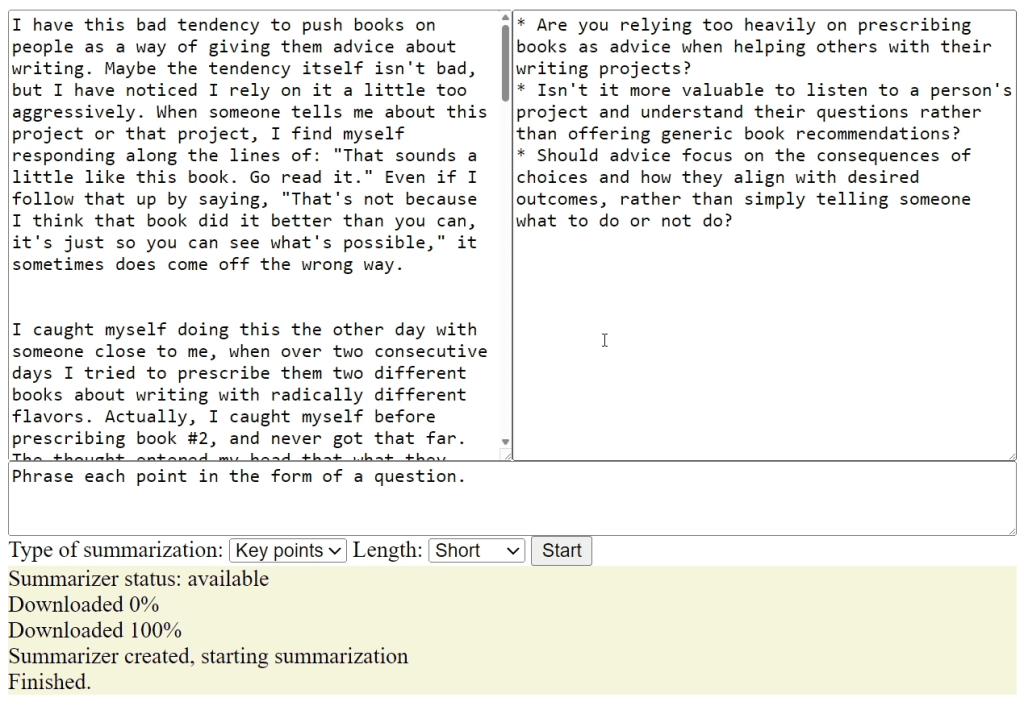
Example output for built-in text summarizer AI model in Chrome and Edge. The model runs entirely on the device hosting the browser and does not call out to an external service to deliver its results.
The first thing to keep in mind is that the model will take some time to download on first use. The sizes of the models vary, but you can expect them to be in the gigabyte range. That’s why it’s a good idea to provide some kind of UI feedback for the download process. Ideally, you’d want to provide some way to run the model download process and then ping the user when it’s ready for use.
Once models are downloaded, there’s no programmatic interface to how they’re managed — at least, not yet. On Google Chrome there’s a local URL, chrome://on-device-internals/, that shows which models have been loaded and provides statistics about them. You can use this page to remove models manually or inspect their stats for the sake of debugging, but the JavaScript APIs don’t expose any such functionality.
When you start the inference process, there may be a noticeable delay between the time the summarization starts and the appearance of the first token. Right now there’s no way for the API to give us feedback about what’s happening during that time, so you’ll want to at least let the user know the process has started.
Finally, while Chrome and Edge support a small number of local AI APIs now, how the future of browser-based local AI will play out is still open-ended. For instance, we might see a more generic standard emerge for how local models work, rather than the task-specific versions shown here. But you can still get going right now.
Why it matters
News like this often changes audience expectations and competitors’ plans.
When one player makes a move, others usually react — it is worth reading the event in context.
What to look out for next
The full picture will become clear in time, but the headline already shows the dynamics of the industry.
Further statements and user reactions will add to the story.